SSH
Table of Contents
SSH on Cisco devices#
SSH Terminal-Line Access Feature#
replaces reverse Telnet feature that was typically configured on terminal services routers.
provides secure console access for servers physically connected to a terminal services router.
introduces the concept of ‘rotary’.
Remember that each physical Async port has an associated logical line to it.
Each router line (not the Async ports) must be configured with a unique rotary number.
Number of rotaries == number of lines
We map an SSH port number with a rotary group number, or with a list of rotary groups:
ip ssh {port number} rotary {rotary group OR rotary_range_of_numbers}
SSH on Linux#
The default package that contains SSH on RHEL is OpenSSH. In addition to SSH, OpenSSH contains SFTP.
user01@vm:~$ dnf list --installed openssh
Not root, Subscription Management repositories not updated
Installed Packages
openssh.x86_64                         9.9p1-7.el10_0                         @anaconda
user01@vm:~$
Verify that the sshd service is running:
user01@vm:~$ systemctl status sshd.service
● sshd.service - OpenSSH server daemon
     Loaded: loaded (/usr/lib/systemd/system/sshd.service; enabled; preset: enabled)
     Active: active (running) since Mon 2026-10-19 22:48:33 EDT; 34min ago
 Invocation: 6f7cc3b616e241bf9084a1e2f039789c
       Docs: man:sshd(8)
             man:sshd_config(5)
   Main PID: 1186 (sshd)
      Tasks: 1 (limit: 10659)
     Memory: 1.3M (peak: 2.1M, swap: 4K, swap peak: 4K)
        CPU: 16ms
     CGroup: /system.slice/sshd.service
             └─1186 "sshd: /usr/sbin/sshd -D [listener] 0 of 10-100 startups"

Oct 19 22:48:33 vm.intra.net systemd[1]: Starting sshd.service - OpenSSH server daemon>
Oct 19 22:48:33 vm.intra.net (sshd)[1186]: sshd.service: Referenced but unset environm>
Oct 19 22:48:33 vm.intra.net sshd[1186]: Server listening on 0.0.0.0 port 22.
Oct 19 22:48:33 vm.intra.net sshd[1186]: Server listening on :: port 22.
Oct 19 22:48:33 vm.intra.net systemd[1]: Started sshd.service - OpenSSH server daemon.
user01@vm:~$
Verify the OpenSSH client configuration file:
user01@vm:~$ ls /etc/ssh/ssh_config
/etc/ssh/ssh_config
Verify the OpenSSH server configuration file:
user01@vm:~$ ls /etc/ssh/sshd_config
/etc/ssh/sshd_config
SSH scenario 1: from rhel10-vm2 to rhel10-vm3#
I first added an entry to /etc/hosts on rhel10-vm2 for rhel10-vm3:
user1@rhel10-vm2:~$ echo '192.168.122.126 rhel10-vm3' | sudo tee -a /etc/hosts
192.168.122.126 rhel10-vm3
user1@rhel10-vm2:~$ cat /etc/hosts
# Loopback entries; do not change.
# For historical reasons, localhost precedes localhost.localdomain:
127.0.0.1   localhost localhost.localdomain localhost4 localhost4.localdomain4
::1         localhost localhost.localdomain localhost6 localhost6.localdomain6
# See hosts(5) for proper format and other examples:
# 192.168.1.10 foo.example.org foo
# 192.168.1.13 bar.example.org bar
192.168.122.126 rhel10-vm3
I verify whether I have the .ssh directory in my home dir:
user1@rhel10-vm2:~$ pwd
/home/user1
user1@rhel10-vm2:~$ ls .ssh
ls: cannot access '.ssh': No such file or directory
I establish an SSH connection from rhel10-vm2 to rhel10-vm3 for the first time:
user1@rhel10-vm2:~$ ssh rhel10-vm3
The authenticity of host 'rhel10-vm3 (192.168.122.126)' can't be established.
ED25519 key fingerprint is SHA256:vHOUVnOMr0tQamHlOmyd1hkVUXK8yZLUfSkiUHipjEw.
This key is not known by any other names.
Are you sure you want to continue connecting (yes/no/[fingerprint])? yes
Warning: Permanently added 'rhel10-vm3' (ED25519) to the list of known hosts.
user1@rhel10-vm3's password:
Web console: https://rhel10-vm3:9090/ or https://192.168.122.126:9090/

Register this system with Red Hat Insights: rhc connect

Example:
# rhc connect --activation-key <key> --organization <org>

The rhc client and Red Hat Insights will enable analytics and additional
management capabilities on your system.
View your connected systems at https://console.redhat.com/insights

You can learn more about how to register your system
using rhc at https://red.ht/registration
Last login: Tue Oct 20 20:44:00 2026 from 192.168.122.1
user1@rhel10-vm3:~$
user1@rhel10-vm3:~$ pwd
/home/user1
user1@rhel10-vm3:~$
I disconnected from rhel10-vm3 and verified whether the system created a .ssh directory:
user1@rhel10-vm3:~$ exit
logout
Connection to rhel10-vm3 closed.
user1@rhel10-vm2:~$ ls .ssh
known_hosts  known_hosts.old
user1@rhel10-vm2:~$
It did. And it stored the remote host fingerprint in .ssh/known_hosts:
user1@rhel10-vm2:~$ cat .ssh/known_hosts
rhel10-vm3 ssh-ed25519 AAAAC3NzaC1lZDI1NTE5AAAAINzZ2J9JmzK/+G+VNapLxfQs7MEKAj6G2nqdIhu83wV6
rhel10-vm3 ssh-rsa AAAAB3NzaC1yc2EAAAADAQABAAABgQDa2lXIsn5YZ6zh5nwzL9bRmXGw++rvQDhGnWcbVCkZRZ+f2Gz8u8Ah7unVxX2NJyEekKOH9bobwdAs6pqvuxTuMXcusFlFxbJ30N6fwh1DnZo9dT+3I9Qg5ya0AT/h9AJJagNFvj3qFQFt+acxow95lXnONn8pCMmSnOMR9N5S/7HepS/iuNvCsGGaRI02ShdLvdLQros+Xed1dX8zshXxSfNLxtVA0fDRxbOhADNY/PlsJXxlLyz8e8X33LKy8twAQYvujWFeI/wi323mju+wxY1ncO57PTgpaN2coBBLmEq5a7D53jBW9+J7UjFtt61ri2jib/CIzrr20TqGwOz7vxwgzpqV4HG2OeAZZjfhwvcHeudRkm0PumX0NxE90psDm4i5ps0IpBsI7P69PVH7TLxEzIayEBP4G6jBrio4stw6iv3VnLbldLr+XvH6JKtQzVsODYauHDlIhXpMI1/iMaatzWut1K2ALHuf27FDnQQyWVj/vTqnq8oKuQBSdRE=
rhel10-vm3 ecdsa-sha2-nistp256 AAAAE2VjZHNhLXNoYTItbmlzdHAyNTYAAAAIbmlzdHAyNTYAAABBBKu9kszuQIfpnQBgEAB0Wn+b8bZ/1D2VYKGi/nHJx/hTYf6D0X3EF7jfQFwTwTHSJy75KC2Y8IoOjYqIuVvDTXU=
user1@rhel10-vm2:~$
public key authentication#
The goal of this example is to SSH from VM4 into VM5 using public key authentication, i.e. no login/password.
scenario 1: same Linux account on both machines#
First, I created the same Linux user account on both the source and target machines. Second, on the source machine, rhel10-vm4, I generate a public-private key pair:
user01@rhel10-vm4:~$ ls .ssh
ls: cannot access '.ssh': No such file or directory
user01@rhel10-vm4:~$
user01@rhel10-vm4:~$ ssh-keygen -N "marhba"
Generating public/private ed25519 key pair.
Enter file in which to save the key (/home/user01/.ssh/id_ed25519):
Created directory '/home/user01/.ssh'.
Your identification has been saved in /home/user01/.ssh/id_ed25519
Your public key has been saved in /home/user01/.ssh/id_ed25519.pub
The key fingerprint is:
SHA256:8XzxMIuvfqDhEM0ujHr8DtndE2ragEtqhjUZL75VoZo user01@rhel10-vm4
The key's randomart image is:
+--[ED25519 256]--+
|                 |
|                 |
|      .o.   +    |
|  .  ...o+ . *   |
|   +.o.oS = o .  |
|  =oo=+.oo.+     |
| +E=* o++oo..    |
|. =+oo =o  o.    |
| ooo.o+ ..o.     |
+----[SHA256]-----+
user01@rhel10-vm4:~$
user01@rhel10-vm4:~$ ls .ssh
id_ed25519  id_ed25519.pub
user01@rhel10-vm4:~$
user01@rhel10-vm4:~$
The generated public key file ends with .pub. The private key file is the other one without the .pub extension.
On the target machine, rhel10-vm5, I need to place a copy of that public key file under .ssh/ directory of the home dir of a Linux user I’m going to use for remote login. Since I am using a home lab with VirtualBox and I have a shared directory that is visible from both VMs, I leveraged that to copy the public key file of the user account of the source machine on the same user account home directory on the target machine.
I copy the content of the public key file to a file on the VirtualBox shared directory, so that the target machine could grab it.
user01@rhel10-vm4:~$ cat .ssh/id_ed25519.pub
ssh-ed25519 AAAAC3NzaC1lZDI1NTE5AAAAIJifeF9/eAcj3s99TO+FPZkVW3qxYFcZw10hXd3J05nq user01@rhel10-vm4
user01@rhel10-vm4:~$
user01@rhel10-vm4:~$ sudo vim /mnt/shareddir/f.txt
[sudo] password for user01:
user01@rhel10-vm4:~$ sudo cat /mnt/shareddir/f.txt
ssh-ed25519 AAAAC3NzaC1lZDI1NTE5AAAAIJifeF9/eAcj3s99TO+FPZkVW3qxYFcZw10hXd3J05nq user01@rhel10-vm4
user01@rhel10-vm4:~$
On the target machine:
user01@vm:~$ sudo ls /mnt/shareddir/
[sudo] password for user01:
blogbuffer.txt  f.txt
user01@vm:~$ cp /mnt/shareddir/f.txt ./id_ed25519.pub
cp: cannot stat '/mnt/shareddir/f.txt': Permission denied
user01@vm:~$ sudo cp /mnt/shareddir/f.txt ./id_ed25519.pub
user01@vm:~$ ls
Desktop    Downloads       Music     Public     Videos
Documents  id_ed25519.pub  Pictures  Templates  vim
user01@vm:~$
Now I have the public key file of user01 in the home dir of user01 on the target machine. It does not have a .ssh directory under the home dir. So I created one:
user01@vm:~$ ls .ssh
ls: cannot access '.ssh': No such file or directory
user01@vm:~$ pwd
/home/user01
user01@vm:~$ mkdir -pv .ssh
mkdir: created directory '.ssh'
user01@vm:~$ ls
Desktop  Documents  Downloads  id_ed25519.pub  Music  Pictures  Public  Templates  Videos  vim
user01@vm:~$ mv id_ed25519.pub .ssh/
user01@vm:~$
user01@vm:~$ ls .ssh
id_ed25519.pub
user01@vm:~$
I attempt an SSH session from the source machine using user01. I expect the system will not ask me for my password on the target machine:
user01@rhel10-vm4:~$ ssh user01@192.168.56.103
The authenticity of host '192.168.56.103 (192.168.56.103)' can't be established.
ED25519 key fingerprint is SHA256:ByoiaJ9hkjK8+M35fjPWH6x4PCdjHTJ9Vs6Z1BZYJP8.
This key is not known by any other names.
Are you sure you want to continue connecting (yes/no/[fingerprint])? yes
Warning: Permanently added '192.168.56.103' (ED25519) to the list of known hosts.
user01@192.168.56.103's password:
Web console: https://vm.intra.net:9090/

Register this system with Red Hat Insights: rhc connect

Example:
# rhc connect --activation-key <key> --organization <org>

The rhc client and Red Hat Insights will enable analytics and additional
management capabilities on your system.
View your connected systems at https://console.redhat.com/insights

You can learn more about how to register your system
using rhc at https://red.ht/registration
Last login: Wed Oct 21 22:30:24 2026
user01@vm:~$
The output does not look to me like it differs from a regular SSH attempt without copying the public key file on the target machine. Then I found these lines in the man pages:
~/.ssh/id_rsa.pub
               Contains the ECDSA, authenticator-hosted ECDSA, Ed25519, authenticator-hosted Ed25519 or RSA public key for authentication.  The contents of this file should
               be added to ~/.ssh/authorized_keys on all machines where the user wishes to log in using public key authentication.  There is no need to keep the contents of
               this file secret.
So, I manually created .ssh/authorized_keys file and filled it with the content of the public key file:
user01@vm:~$ ls .ssh
id_ed25519.pub
user01@vm:~$ cat .ssh/id_ed25519.pub
cat: .ssh/id_ed25519.pub: Permission denied
user01@vm:~$ sudo cat .ssh/id_ed25519.pub > .ssh/authorized_keys
[sudo] password for user01:
user01@vm:~$ sudo cat .ssh/authorized_keys
ssh-ed25519 AAAAC3NzaC1lZDI1NTE5AAAAIJifeF9/eAcj3s99TO+FPZkVW3qxYFcZw10hXd3J05nq user01@rhel10-vm4
user01@vm:~$
user01@vm:~$ ls .ssh
authorized_keys  id_ed25519.pub
user01@vm:~$
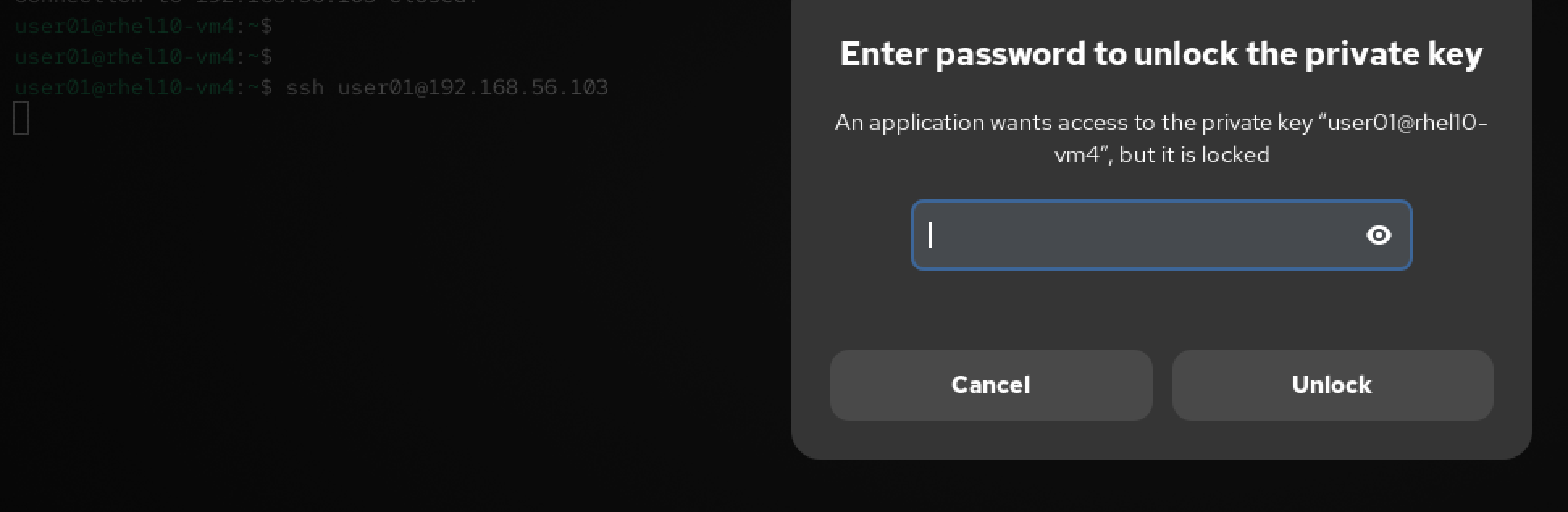
New SSH attempt from source to target machine using user01. This time I received a popup window asking me for a passkey. I entered the passphrase I’ve created earlier with ssh-keygen. I received the prompt right after it; I was not asked for user01’s password:
user01@rhel10-vm4:~$ ssh user01@192.168.56.103
Web console: https://vm.intra.net:9090/

Register this system with Red Hat Insights: rhc connect

Example:
# rhc connect --activation-key <key> --organization <org>

The rhc client and Red Hat Insights will enable analytics and additional
management capabilities on your system.
View your connected systems at https://console.redhat.com/insights

You can learn more about how to register your system
using rhc at https://red.ht/registration
Last login: Wed Oct 21 22:48:15 2026 from 192.168.56.104
user01@vm:~$
Then I got aware of ssh-copy-id. I found the definition in the man page self-explanatory:
SSH-COPY-ID(1)                                                             General Commands Manual                                                            SSH-COPY-ID(1)

NAME
       ssh-copy-id — use locally available keys to authorise logins on a remote machine

SYNOPSIS
       ssh-copy-id [-f] [-n] [-s] [-x] [-i [identity_file]] [-t target_path] [-F ssh_config] [[-o ssh_option] ...] [-p port] [user@]hostname
       ssh-copy-id -h | -?

DESCRIPTION
       ssh-copy-id is a script that uses ssh(1) to log into a remote machine (presumably using a login password, so password authentication should be enabled, unless you've
       done  some clever use of multiple identities).  It assembles a list of one or more fingerprints (as described below) and tries to log in with each key, to see if any
       of them are already installed (of course, if you are not using ssh-agent(1) this may result in you being repeatedly prompted for pass-phrases).  It then assembles  a
       list of those that failed to log in and, using ssh(1), enables logins with those keys on the remote server.  By default it adds the keys by appending them to the re‐
       mote  user's ~/.ssh/authorized_keys (creating the file, and directory, if necessary).  It is also capable of detecting if the remote system is a NetScreen, and using
       its ‘set ssh pka-dsa key ...’ command instead.

       The options are as follows:

       -i [identity_file]
               Use only the key(s) contained in identity_file (rather than looking for identities via ssh-add(1) or in the default_ID_file).  If the filename does  not  end
               in .pub this is added.  If the filename is omitted, the default_ID_file is used.

<---- output omitted ---->
To test it, I deleted the authorized_keys file and the public key file from the target machine, and the known_hosts from the source machine.
user01@vm:~$ ls -l .ssh/authorized_keys
-rw-r--r--. 1 user01 user01 99 Oct 21 22:55 .ssh/authorized_keys
user01@vm:~$ rm .ssh/authorized_keys
user01@vm:~$
user01@vm:~$ ls -l .ssh/
total 4
-rwxr-x---. 1 root root 99 Oct 21 12:30 id_ed25519.pub
user01@vm:~$ sudo rm .ssh/id_ed25519.pub
[sudo] password for user01:
user01@vm:~$
user01@vm:~$ ls .ssh/
user01@vm:~$
user01@rhel10-vm4:~$ ls .ssh/
id_ed25519  id_ed25519.pub  known_hosts  known_hosts.old
user01@rhel10-vm4:~$ ls -l .ssh/known_hosts
-rw-------. 1 user01 user01 840 Oct 21 22:48 .ssh/known_hosts
user01@rhel10-vm4:~$ rm .ssh/known_hosts
user01@rhel10-vm4:~$ ls .ssh/
id_ed25519  id_ed25519.pub  known_hosts.old
user01@rhel10-vm4:~$
user01@rhel10-vm4:~$ ls -l .ssh/known_hosts.old
-rw-r--r--. 1 user01 user01 96 Oct 21 22:48 .ssh/known_hosts.old
user01@rhel10-vm4:~$ rm .ssh/known_hosts.old
user01@rhel10-vm4:~$ ls .ssh/
id_ed25519  id_ed25519.pub
user01@rhel10-vm4:~$
I now use ssh-copy-id -i on the source machine, provide the public key file and the IP of the target machine:
user01@rhel10-vm4:~$ ls .ssh/
id_ed25519  id_ed25519.pub
user01@rhel10-vm4:~$ ssh-copy-id -i .ssh/id_ed25519.pub 192.168.56.103
/usr/bin/ssh-copy-id: INFO: Source of key(s) to be installed: ".ssh/id_ed25519.pub"
The authenticity of host '192.168.56.103 (192.168.56.103)' can't be established.
ED25519 key fingerprint is SHA256:ByoiaJ9hkjK8+M35fjPWH6x4PCdjHTJ9Vs6Z1BZYJP8.
This key is not known by any other names.
Are you sure you want to continue connecting (yes/no/[fingerprint])? yes
/usr/bin/ssh-copy-id: INFO: attempting to log in with the new key(s), to filter out any that are already installed
/usr/bin/ssh-copy-id: INFO: 1 key(s) remain to be installed -- if you are prompted now it is to install the new keys
user01@192.168.56.103's password:

Number of key(s) added: 1

Now try logging into the machine, with: "ssh -i .ssh/id_ed25519 '192.168.56.103'"
and check to make sure that only the key(s) you wanted were added.

user01@rhel10-vm4:~$
I check for any changes on the target machine, under the home dir of user01:
user01@vm:~$ ls .ssh/
authorized_keys
user01@vm:~$
It seems that the command installed the public key of user01 on the target machine as an authorized key. Now back to the source machine: I run the command line that was suggested by the output:
user01@rhel10-vm4:~$ ssh -i .ssh/id_ed25519 '192.168.56.103'
Web console: https://vm.intra.net:9090/

Register this system with Red Hat Insights: rhc connect

Example:
# rhc connect --activation-key <key> --organization <org>

The rhc client and Red Hat Insights will enable analytics and additional
management capabilities on your system.
View your connected systems at https://console.redhat.com/insights

You can learn more about how to register your system
using rhc at https://red.ht/registration
Last login: Wed Oct 21 22:59:10 2026 from 192.168.56.104
user01@vm:~$
As in the output, I was asked for neither a password, nor a passphrase.
scenario 2: using the key pair of another account#
What if instead of copying the public key file in the .ssh/ dir of the home dir of user01, I placed it under user02?
user01@rhel10-vm4:~$ ls .ssh/
id_ed25519  id_ed25519.pub  known_hosts  known_hosts.old
user01@rhel10-vm4:~$ rm .ssh/known_hosts
user01@rhel10-vm4:~$
user01@rhel10-vm4:~$ ssh-copy-id -i .ssh/id_ed25519.pub user02@192.168.56.103
/usr/bin/ssh-copy-id: INFO: Source of key(s) to be installed: ".ssh/id_ed25519.pub"
The authenticity of host '192.168.56.103 (192.168.56.103)' can't be established.
ED25519 key fingerprint is SHA256:ByoiaJ9hkjK8+M35fjPWH6x4PCdjHTJ9Vs6Z1BZYJP8.
This key is not known by any other names.
Are you sure you want to continue connecting (yes/no/[fingerprint])? yes
/usr/bin/ssh-copy-id: INFO: attempting to log in with the new key(s), to filter out any that are already installed
/usr/bin/ssh-copy-id: INFO: 1 key(s) remain to be installed -- if you are prompted now it is to install the new keys
user02@192.168.56.103's password:

Number of key(s) added: 1

Now try logging into the machine, with: "ssh -i .ssh/id_ed25519 'user02@192.168.56.103'"
and check to make sure that only the key(s) you wanted were added.

user01@rhel10-vm4:~$ ssh -i .ssh/id_ed25519 'user02@192.168.56.103'
I receive this popup window:
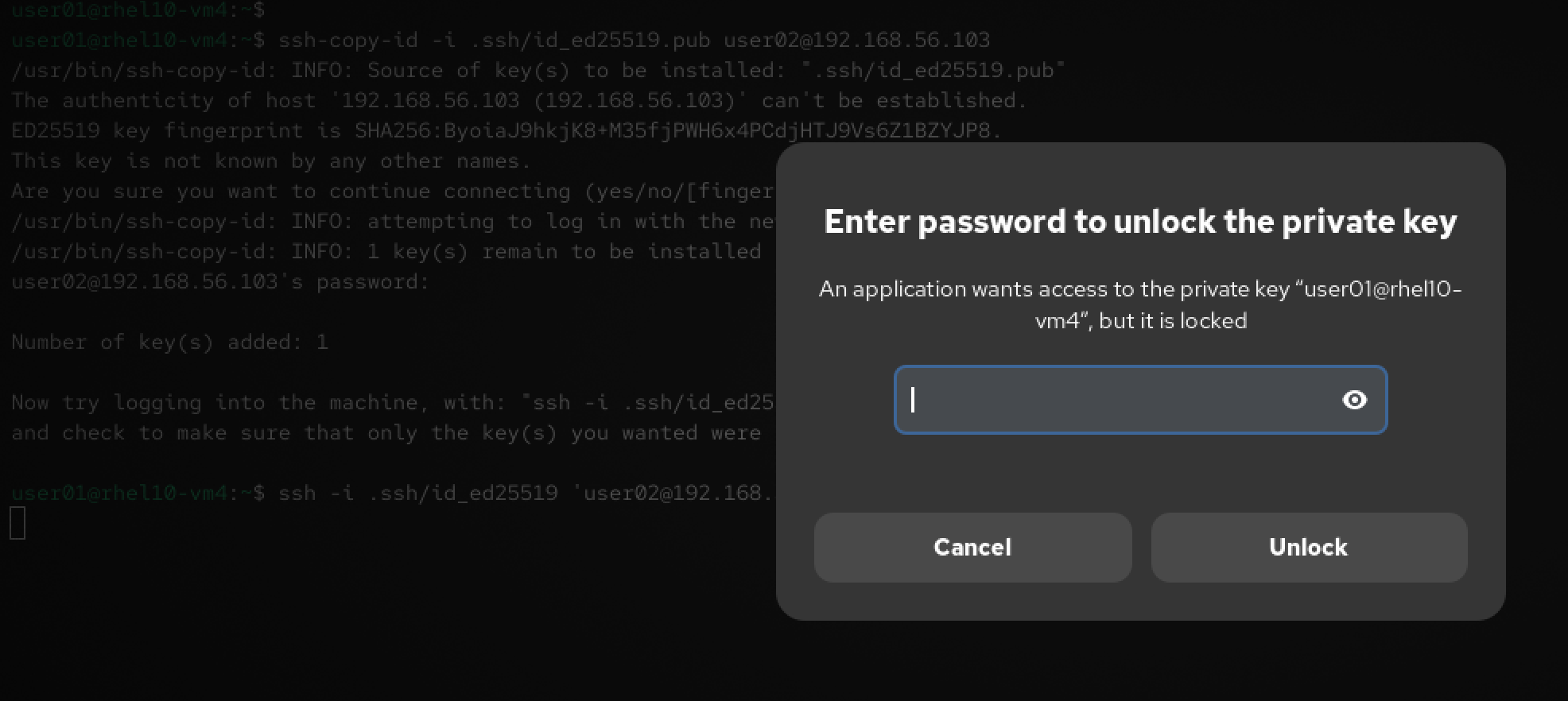
I enter the passphrase. I get the prompt back and I find myself logged in to the remote machine with user02:
Register this system with Red Hat Insights: rhc connect

Example:
# rhc connect --activation-key <key> --organization <org>

The rhc client and Red Hat Insights will enable analytics and additional
management capabilities on your system.
View your connected systems at https://console.redhat.com/insights

You can learn more about how to register your system
using rhc at https://red.ht/registration
Last failed login: Thu Oct 22 00:12:40 EDT 2026 on pts/1
There were 3 failed login attempts since the last successful login.
Last login: Fri Oct  2 14:57:08 2026
user02@vm:~$
#LessonLearned I can leverage the public-private key pair of a user X to log in to a remote machine as a user Y, as long as I know user Y’s password and the passphrase of user X.
SSH logs#
I analyze the log file. I found a log line telling that the public key authentication initiated from 192.168.56.104 (the source machine) using user02 was accepted. A subsequent line tells that an SSH session was established for user02:
user01@vm:~$ tail -n 10 /var/log/secure
tail: cannot open '/var/log/secure' for reading: Permission denied
user01@vm:~$ ls -l /var/log/secure
-rw-------. 1 root root 28639 Dec 20 00:24 /var/log/secure
user01@vm:~$ sudo tail -n 30 /var/log/secure | grep user02
Dec 20 00:13:52 vm sshd-session[14714]: pam_unix(sshd:session): session closed for user user02
Dec 20 00:15:21 vm sshd-session[14847]: Accepted publickey for user02 from 192.168.56.104 port 34794 ssh2: ED25519 SHA256:8XzxMIuvfqDhEM0ujHr8DtndE2ragEtqhjUZL75VoZo
Dec 20 00:15:21 vm (systemd)[14964]: pam_unix(systemd-user:session): session opened for user user02(uid=2000) by user02(uid=0)
Dec 20 00:15:22 vm sshd-session[14847]: pam_unix(sshd:session): session opened for user user02(uid=2000) by user02(uid=0)
user01@vm:~$
executing commands on a remote machine using ssh#
To demonstrate that, I put some dummy hint files on the target machine:
user01@vm:~$ hostnamectl --static hostname rhel10-vm5
user01@vm:~$
user01@vm:~$ touch ThisIsHomeDirOnTargetMachine
user01@vm:~$ ls
Desktop  Documents  Downloads  Music  Pictures  Public  Templates  ThisIsHomeDirOnTargetMachine  Videos  vim
user01@vm:~$ ls /tmp
systemd-private-f55d2bbbe6aa4962b8aa4d0d1f3c0fcf-chronyd.service-o0pXjh       systemd-private-f55d2bbbe6aa4962b8aa4d0d1f3c0fcf-polkit.service-fpCMZC
systemd-private-f55d2bbbe6aa4962b8aa4d0d1f3c0fcf-colord.service-NheBll        systemd-private-f55d2bbbe6aa4962b8aa4d0d1f3c0fcf-rtkit-daemon.service-cVmP8Y
systemd-private-f55d2bbbe6aa4962b8aa4d0d1f3c0fcf-dbus-broker.service-zYbN3t   systemd-private-f55d2bbbe6aa4962b8aa4d0d1f3c0fcf-switcheroo-control.service-sHUr45
systemd-private-f55d2bbbe6aa4962b8aa4d0d1f3c0fcf-fwupd.service-PG4Cx4         systemd-private-f55d2bbbe6aa4962b8aa4d0d1f3c0fcf-systemd-logind.service-JJeiIU
systemd-private-f55d2bbbe6aa4962b8aa4d0d1f3c0fcf-irqbalance.service-7ri1HR    systemd-private-f55d2bbbe6aa4962b8aa4d0d1f3c0fcf-upower.service-G0RYhM
systemd-private-f55d2bbbe6aa4962b8aa4d0d1f3c0fcf-ModemManager.service-LCs2dU
user01@vm:~$ touch /tmp/thisIsVM5
user01@vm:~$
user01@vm:~$ ls /tmp/
systemd-private-f55d2bbbe6aa4962b8aa4d0d1f3c0fcf-chronyd.service-o0pXjh       systemd-private-f55d2bbbe6aa4962b8aa4d0d1f3c0fcf-polkit.service-fpCMZC
systemd-private-f55d2bbbe6aa4962b8aa4d0d1f3c0fcf-colord.service-NheBll        systemd-private-f55d2bbbe6aa4962b8aa4d0d1f3c0fcf-rtkit-daemon.service-cVmP8Y
systemd-private-f55d2bbbe6aa4962b8aa4d0d1f3c0fcf-dbus-broker.service-zYbN3t   systemd-private-f55d2bbbe6aa4962b8aa4d0d1f3c0fcf-switcheroo-control.service-sHUr45
systemd-private-f55d2bbbe6aa4962b8aa4d0d1f3c0fcf-fwupd.service-PG4Cx4         systemd-private-f55d2bbbe6aa4962b8aa4d0d1f3c0fcf-systemd-logind.service-JJeiIU
systemd-private-f55d2bbbe6aa4962b8aa4d0d1f3c0fcf-irqbalance.service-7ri1HR    systemd-private-f55d2bbbe6aa4962b8aa4d0d1f3c0fcf-upower.service-G0RYhM
systemd-private-f55d2bbbe6aa4962b8aa4d0d1f3c0fcf-ModemManager.service-LCs2dU  thisIsVM5
user01@vm:~$
Then I return to the source machine and send the remote commands via an SSH session:
user01@rhel10-vm4:~$ cat /etc/hosts
# Loopback entries; do not change.
# For historical reasons, localhost precedes localhost.localdomain:
127.0.0.1   localhost localhost.localdomain localhost4 localhost4.localdomain4
::1         localhost localhost.localdomain localhost6 localhost6.localdomain6
# See hosts(5) for proper format and other examples:
# 192.168.1.10 foo.example.org foo
# 192.168.1.13 bar.example.org bar
# added by me
192.168.178.36  rhel10-vm2
user01@rhel10-vm4:~$ ls -l /etc/hosts
-rw-r--r--. 1 root root 424 Oct  1 12:39 /etc/hosts
user01@rhel10-vm4:~$
user01@rhel10-vm4:~$ sudo sed -i 's/192.168.178.36      rhel10-vm2/192.168.56.103 remoteMachine/' /etc/hosts
[sudo] password for user01:
user01@rhel10-vm4:~$ cat /etc/hosts
# Loopback entries; do not change.
# For historical reasons, localhost precedes localhost.localdomain:
127.0.0.1   localhost localhost.localdomain localhost4 localhost4.localdomain4
::1         localhost localhost.localdomain localhost6 localhost6.localdomain6
# See hosts(5) for proper format and other examples:
# 192.168.1.10 foo.example.org foo
# 192.168.1.13 bar.example.org bar
# added by me
192.168.56.103 remoteMachine
user01@rhel10-vm4:~$
user01@rhel10-vm4:~$ ssh remoteMachine pwd
The authenticity of host 'remotemachine (192.168.56.103)' can't be established.
ED25519 key fingerprint is SHA256:ByoiaJ9hkjK8+M35fjPWH6x4PCdjHTJ9Vs6Z1BZYJP8.
This host key is known by the following other names/addresses:
    ~/.ssh/known_hosts:1: 192.168.56.103
Are you sure you want to continue connecting (yes/no/[fingerprint])? yes
Warning: Permanently added 'remotemachine' (ED25519) to the list of known hosts.
user01@remotemachine's password:
/home/user01
user01@rhel10-vm4:~$
user01@rhel10-vm4:~$ ssh remoteMachine hostname
user01@remotemachine's password:
rhel10-vm5
user01@rhel10-vm4:~$ ssh remoteMachine ls
user01@remotemachine's password:
Desktop
Documents
Downloads
Music
Pictures
Public
Templates
ThisIsHomeDirOnTargetMachine
Videos
vim
user01@rhel10-vm4:~$
user01@rhel10-vm4:~$ ssh remoteMachine 'ls /tmp/'
user01@remotemachine's password:
systemd-private-f55d2bbbe6aa4962b8aa4d0d1f3c0fcf-chronyd.service-o0pXjh
systemd-private-f55d2bbbe6aa4962b8aa4d0d1f3c0fcf-colord.service-NheBll
systemd-private-f55d2bbbe6aa4962b8aa4d0d1f3c0fcf-dbus-broker.service-zYbN3t
systemd-private-f55d2bbbe6aa4962b8aa4d0d1f3c0fcf-fwupd.service-PG4Cx4
systemd-private-f55d2bbbe6aa4962b8aa4d0d1f3c0fcf-irqbalance.service-7ri1HR
systemd-private-f55d2bbbe6aa4962b8aa4d0d1f3c0fcf-ModemManager.service-LCs2dU
systemd-private-f55d2bbbe6aa4962b8aa4d0d1f3c0fcf-polkit.service-fpCMZC
systemd-private-f55d2bbbe6aa4962b8aa4d0d1f3c0fcf-rtkit-daemon.service-cVmP8Y
systemd-private-f55d2bbbe6aa4962b8aa4d0d1f3c0fcf-switcheroo-control.service-sHUr45
systemd-private-f55d2bbbe6aa4962b8aa4d0d1f3c0fcf-systemd-logind.service-JJeiIU
systemd-private-f55d2bbbe6aa4962b8aa4d0d1f3c0fcf-upower.service-G0RYhM
thisIsVM5
user01@rhel10-vm4:~$
SFTP#
The sftp tool that comes with OpenSSH is an implementation of the SFTP protocol. It runs on SSH.
SFTP transfer using Linux account password#
Without using the form user_account_name@hostname, the process uses the current username and Linux tries to authenticate it on the remote machine:
user01@rhel10-vm4:~$ sftp remoteMachine
user01@remotemachine's password:
Connected to remoteMachine.
sftp>
sftp> exit
user01@rhel10-vm4:~$
I can also provide the user account name in the argument and Linux will ask for its password if no public key authentication is installed for it:
user01@rhel10-vm4:~$ sftp user02@remoteMachine
user02@remotemachine's password:
Connected to remoteMachine.
sftp>
sftp> quit
user01@rhel10-vm4:~$
SFTP transfer using a public-private key pair#
Having generated the public-private key pair for user01 on rhel10-vm4, I transfer the public key to rhel10-vm5 using ssh-copy-id:
user01@rhel10-vm4:~$ ls .ssh/
id_ed25519  id_ed25519.pub  known_hosts  known_hosts.old
user01@rhel10-vm4:~$ ssh-copy-id -i .ssh/id_ed25519.pub remoteMachine
/usr/bin/ssh-copy-id: INFO: Source of key(s) to be installed: ".ssh/id_ed25519.pub"
/usr/bin/ssh-copy-id: INFO: attempting to log in with the new key(s), to filter out any that are already installed
/usr/bin/ssh-copy-id: INFO: 1 key(s) remain to be installed -- if you are prompted now it is to install the new keys
user01@remotemachine's password:

Number of key(s) added: 1

Now try logging into the machine, with: "ssh -i .ssh/id_ed25519 'remoteMachine'"
and check to make sure that only the key(s) you wanted were added.

user01@rhel10-vm4:~$
Testing the ssh access and giving the identify file (the private key) as an argument:
user01@rhel10-vm4:~$ ssh -i .ssh/id_ed25519 remoteMachine
Web console: https://rhel10-vm5:9090/

Register this system with Red Hat Insights: rhc connect

Example:
# rhc connect --activation-key <key> --organization <org>

The rhc client and Red Hat Insights will enable analytics and additional
management capabilities on your system.
View your connected systems at https://console.redhat.com/insights

You can learn more about how to register your system
using rhc at https://red.ht/registration
Last login: Fri Oct 23 00:28:28 2026
user01@rhel10-vm5:~$
user01@rhel10-vm5:~$ exit
logout
Connection to remotemachine closed.
user01@rhel10-vm4:~$
Now executing the sftp tool; No password was required:
user01@rhel10-vm4:~$ sftp remoteMachine
Connected to remoteMachine.
sftp>
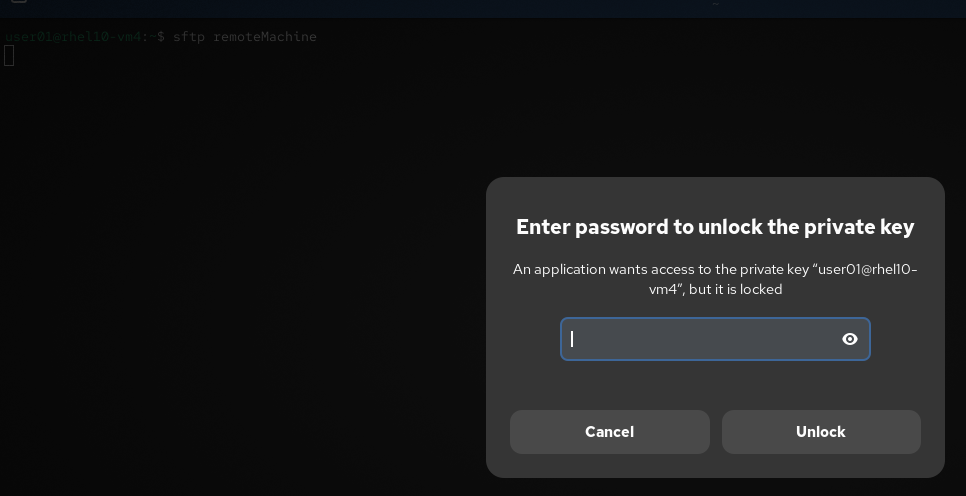
I rebooted rhel10-vm4 and retried the sftp command. This time I was asked for the passphrase:
Connected to remoteMachine.
sftp>
sftp>
I repeated the command. Linux did not ask for the passphrase:
sftp> exit
user01@rhel10-vm4:~$ sftp remoteMachine
Connected to remoteMachine.
sftp>
Some operations with the sftp command:
user01@rhel10-vm4:~$ ls .ssh
id_ed25519  id_ed25519.pub  known_hosts  known_hosts.old
user01@rhel10-vm4:~$ ssh-copy-id -i .ssh/id_ed25519.pub remoteMachine
/usr/bin/ssh-copy-id: INFO: Source of key(s) to be installed: ".ssh/id_ed25519.pub"
/usr/bin/ssh-copy-id: INFO: attempting to log in with the new key(s), to filter out any that are already installed
/usr/bin/ssh-copy-id: INFO: 1 key(s) remain to be installed -- if you are prompted now it is to install the new keys
user01@remotemachine's password:

Number of key(s) added: 1

Now try logging into the machine, with: "ssh -i .ssh/id_ed25519 'remoteMachine'"
and check to make sure that only the key(s) you wanted were added.

user01@rhel10-vm4:~$ sftp remoteMachine
Connected to remoteMachine.
sftp>
sftp> ls
Desktop               Documents             Downloads             Music                 Pictures              Public                Templates             Videos
createdWithSFTP_dir   vim
sftp> mkdir firstRemoteDir
sftp> ls -l
drwxr-xr-x    ? user01   user01          6 Sep 29 23:25 Desktop
drwxr-xr-x    ? user01   user01          6 Sep 29 23:25 Documents
drwxr-xr-x    ? user01   user01          6 Sep 29 23:25 Downloads
drwxr-xr-x    ? user01   user01          6 Sep 29 23:25 Music
drwxr-xr-x    ? user01   user01          6 Sep 29 23:25 Pictures
drwxr-xr-x    ? user01   user01          6 Sep 29 23:25 Public
drwxr-xr-x    ? user01   user01          6 Sep 29 23:25 Templates
drwxr-xr-x    ? user01   user01         78 Oct  8 00:42 Videos
drwxr-xr-x    ? user01   user01          6 Oct 23 00:42 createdWithSFTP_dir
drwxr-xr-x    ? user01   user01          6 Oct 23 01:30 firstRemoteDir
-rw-r--r--    ? user01   user01          0 Sep 30 14:49 vim
sftp> ?
Available commands:
bye                                Quit sftp
cd path                            Change remote directory to 'path'
chgrp [-h] grp path                Change group of file 'path' to 'grp'
chmod [-h] mode path               Change permissions of file 'path' to 'mode'
chown [-h] own path                Change owner of file 'path' to 'own'
copy oldpath newpath               Copy remote file
cp oldpath newpath                 Copy remote file
df [-hi] [path]                    Display statistics for current directory or
                                   filesystem containing 'path'
exit                               Quit sftp
get [-afpR] remote [local]         Download file
help                               Display this help text

<---- output omitted ---->
sftp> put dummyfile firstRemoteDir/
Uploading dummyfile to /home/user01/firstRemoteDir/dummyfile
dummyfile                                                                                                                                      100%    0     0.0KB/s   00:00
sftp> ls -l firstRemoteDir/
-rw-r--r--    ? user01   user01          0 Oct 23 01:31 firstRemoteDir/dummyfile
sftp> get firstRemoteDir/dummyfile dummyfileDownloaded
Fetching /home/user01/firstRemoteDir/dummyfile to dummyfileDownloaded
sftp>
Adding l to commands such as ls and mkdir impacts the local machine, not the remote one:
sftp> lls -l | grep dummyfileDownloaded
-rw-r--r--. 1 user01 user01  0 Oct 23 01:32 dummyfileDownloaded
sftp> lmkdir localDir
sftp> lls localDir
sftp> lls -ld localDir
drwxr-xr-x. 2 user01 user01 6 Oct 23 01:32 localDir
sftp> ls -ld localDir
ls: Invalid flag -d
sftp> ls -l localDir
Can't ls: "/home/user01/localDir" not found
sftp>
controlling remote root access via SSH#
When the PermitRootLogin is set to no in /etc/ssh/sshd_config, SSH access with the root account is not allowed.
Extract from /etc/ssh/sshd_config on the target machine:
<---- output omitted ---->

#LoginGraceTime 2m
#PermitRootLogin prohibit-password
# added by me
PermitRootLogin no
#StrictModes yes
#MaxAuthTries 6
#MaxSessions 10
Result:
user01@rhel10-vm4:~$ getent hosts remoteMachine
192.168.56.103  remoteMachine
user01@rhel10-vm4:~$ ssh root@remoteMachine
root@remotemachine's password:
Permission denied, please try again.
Setting the same directive to yes changes the result:
<---- output omitted ---->

#LoginGraceTime 2m
#PermitRootLogin prohibit-password
# added by me
PermitRootLogin yes
#StrictModes yes
#MaxAuthTries 6
#MaxSessions 10
Result:
user01@rhel10-vm4:~$ ssh root@remoteMachine
root@remotemachine's password:
Web console: https://rhel10-vm5:9090/

Register this system with Red Hat Insights: rhc connect

Example:
# rhc connect --activation-key <key> --organization <org>

The rhc client and Red Hat Insights will enable analytics and additional
management capabilities on your system.
View your connected systems at https://console.redhat.com/insights

You can learn more about how to register your system
using rhc at https://red.ht/registration
Last failed login: Fri Oct 23 15:57:45 EDT 2026 from 192.168.56.104 on ssh:notty
There were 4 failed login attempts since the last successful login.
root@rhel10-vm5:~# exit
logout
Connection to remotemachine closed.
user01@rhel10-vm4:~$
references#
- cisco.com/c/en/us/td/docs/ios-xml/ios/sec_usr_ssh/configuration/12-4t/sec-usr-ssh-12-4t-book/sec-ssh-term-line.pdf
- RHCSA Red Hat Enterprise Linux 10: Training and Exam Preparation Guide (EX200), Fourth Edition