Configuring PKI
Table of Contents
| Technology | Definitions |
|---|---|
| CSR | Certificate Signing Request |
Certificates#
Issuing a Digital Certificate#
Certificate server, Certificate Authority. The entities that want the CA to issue a digital certificate for them must send their public key, their IP address and their FQDN to the CA. The CA replies with a digital certificate, aka identity certificate, aka public key certificate which means ‘I certify that the entity named in this certificate own the public key mentioned in this digital certificate.’ The digital certificate does not last forever; It has a validity period. The digital certificate is a file with the extension .cer.
CA Certificate#
The CA certificate is a digital certificate issued by the CA and contains the signature of the CA. The signature of the CA can be verified using the public key of the CA.
Public CA vs internal CA#
Most web browsers have a list of CAs which they pre-trust. These are public CAs which are known in the Internet1. We can create our own CA for the company, aka the internal CA, as opposed to a public CA. Because web browsers have the pre-defined list of CAs, we need to add the company CA to the web browsers used in the company. Windows Server 2012 can play the role of internal CA.

A nice way to download a CA certificate from a Windows Server 2012 internal CA is:
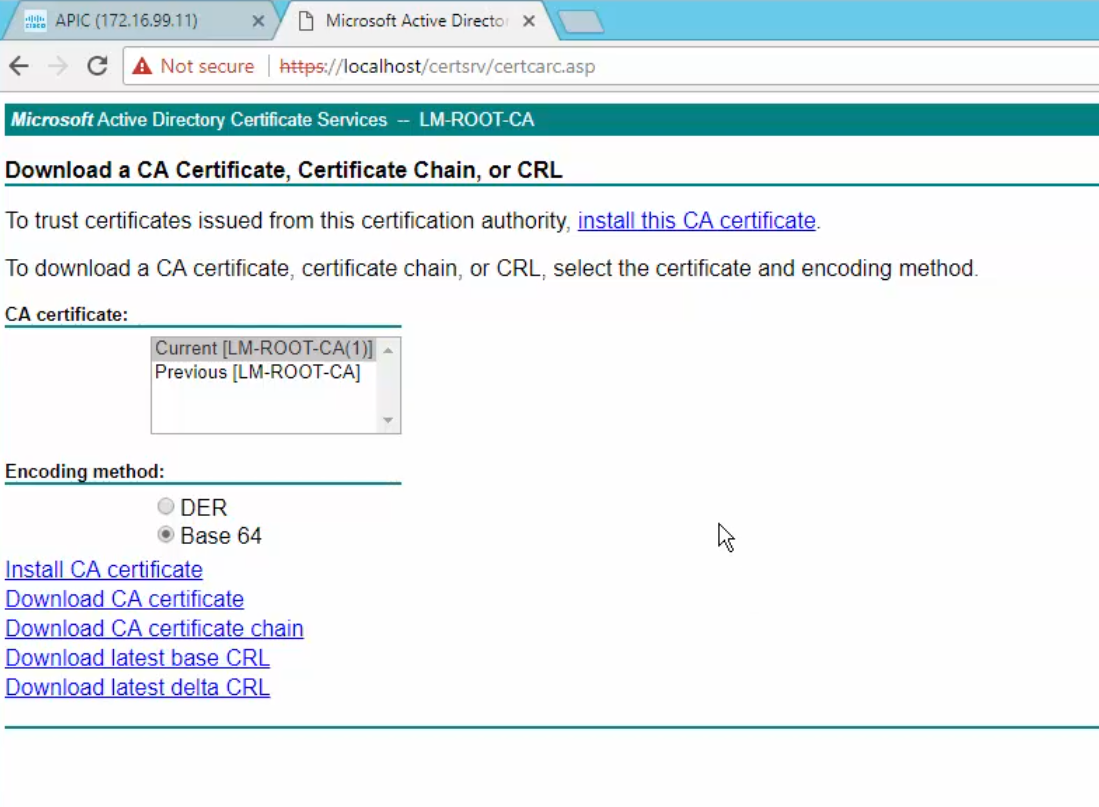
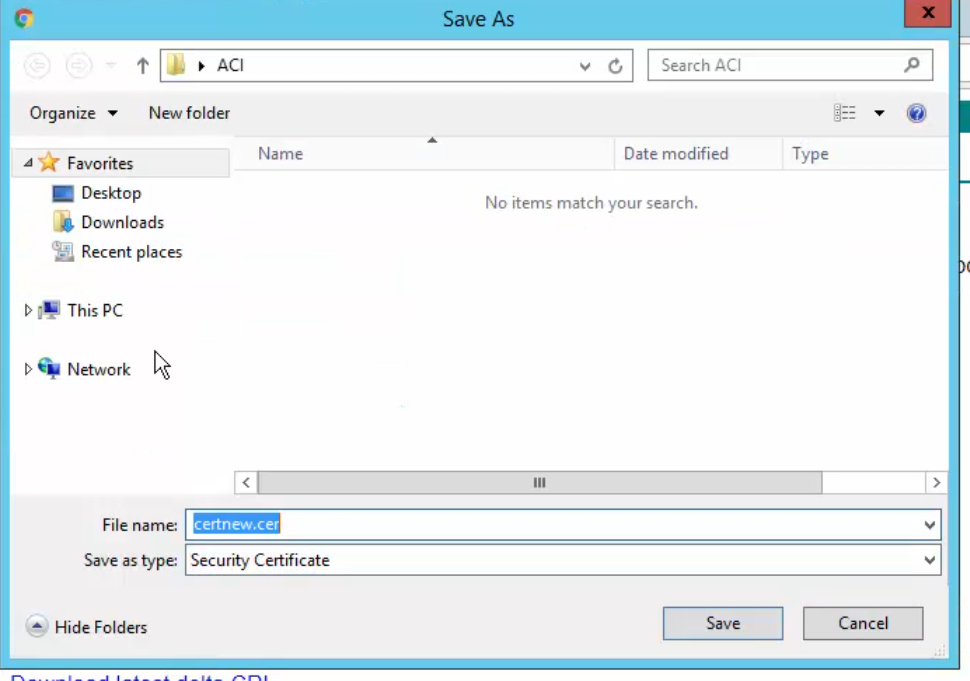
The certificate downloaded from the internal CA looks like this:
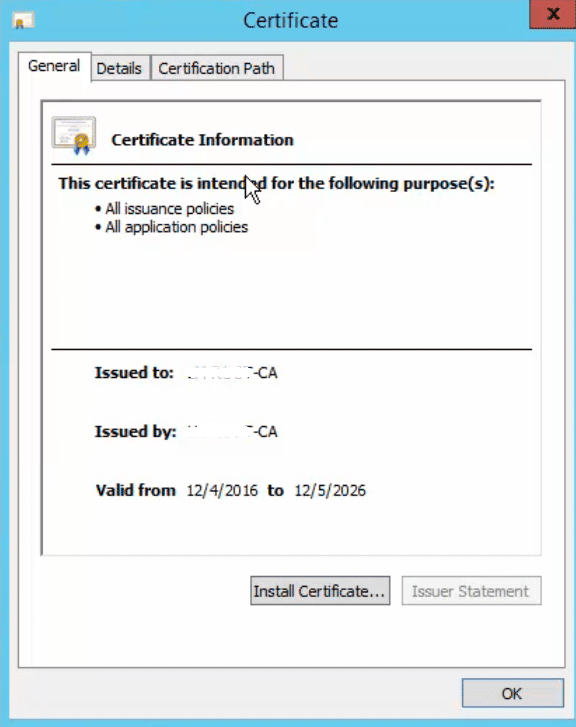
Certificates and ACI#
Requirement#
NTP must be configured on ACI and all nodes must be synchronized with the NTP providers.
Self-signed Certificates#
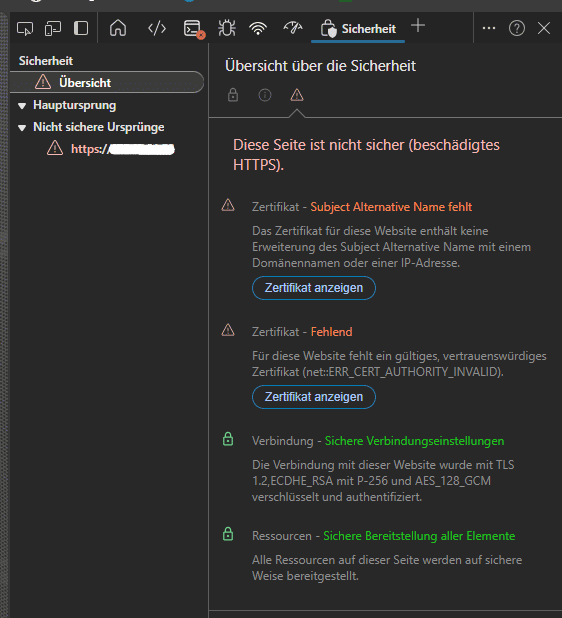
At initial startup, all fabric nodes and all APICs use the ACI self-signed digital certificate:
- On Microsoft Edge when you click F12 then select Security then click View Certificates:
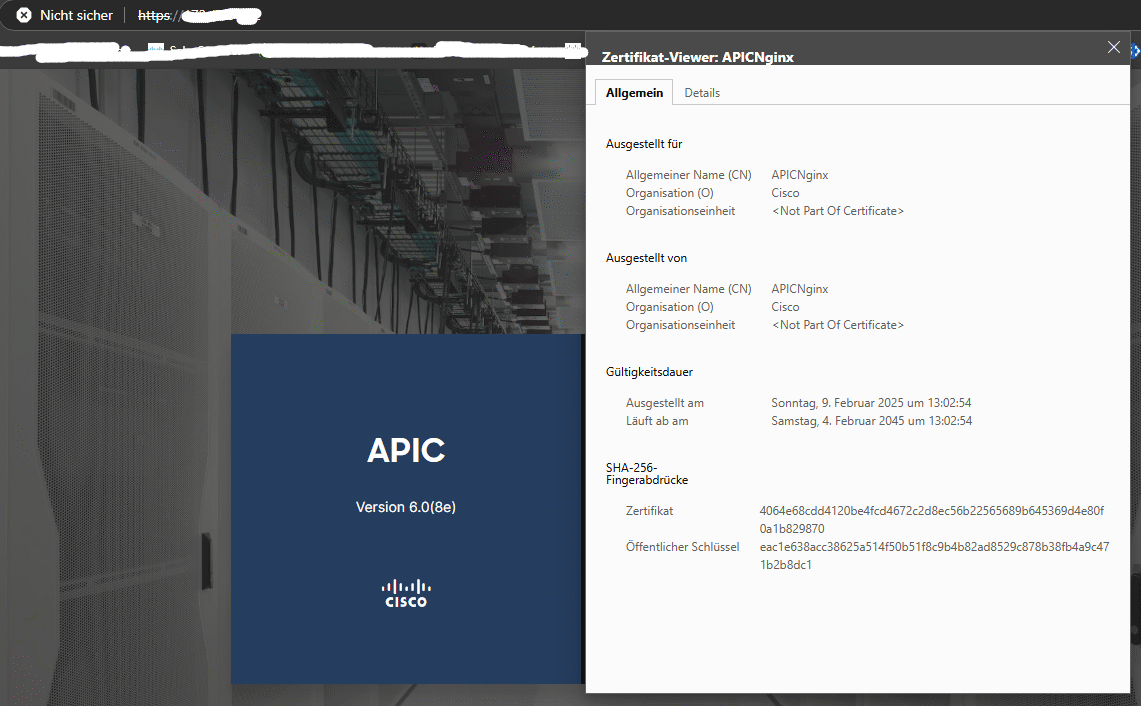
We can either use wildcard certificates or ❓But using wildcard certificates offers the advantage that we do not need to add to SAN each time a new node is registered to the ACI fabric. ACI requires the intermediate CA certificate2 and the root CA certificate to generate the CSR. In case we use an internal CA, we request them directly from the CA administrator.
Import CA Certificates to ACI#
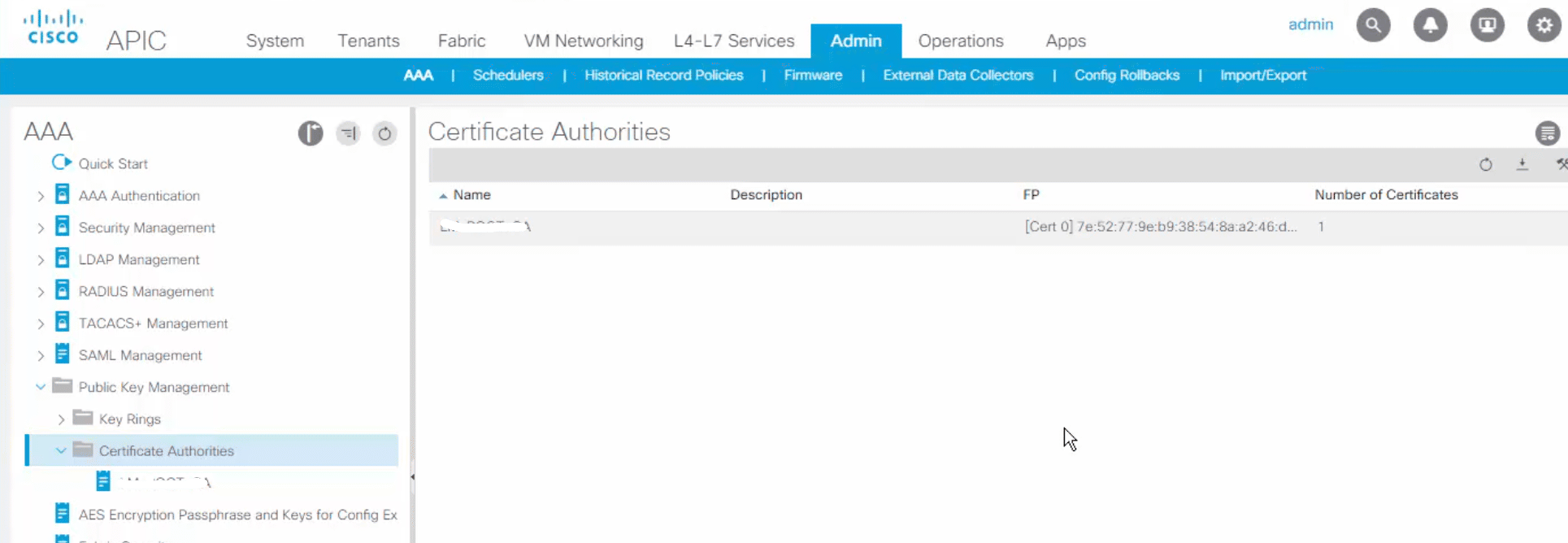
Let us suppose there is no intermediate CA in the company PKI infrastructure. So we need to get a copy of the internal CA’s certificate3 and import it to ACI. To import the CA certificate to ACI, we need to open the CA certificate with a notepad, copy all the content4:
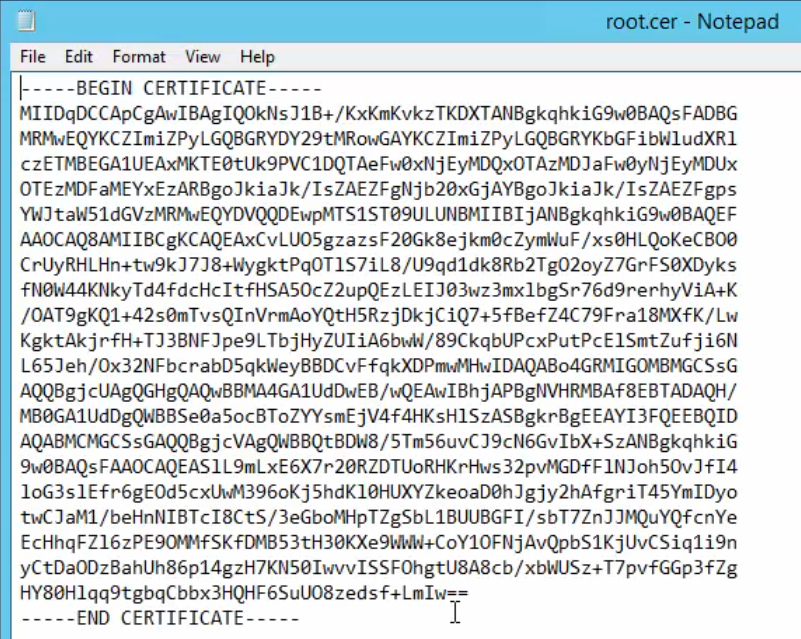
Then create a Certificate Authority in ACI and add the Certificate Chain.
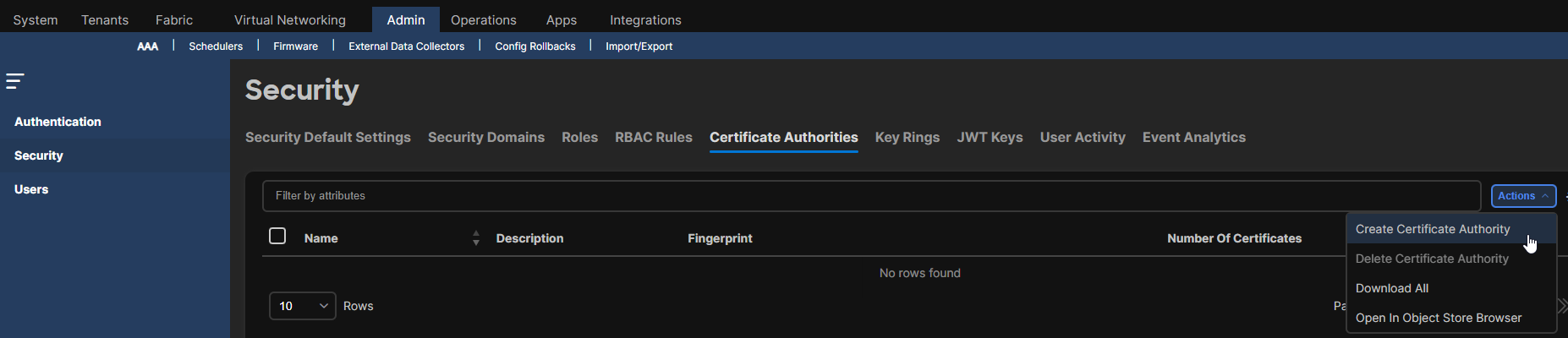
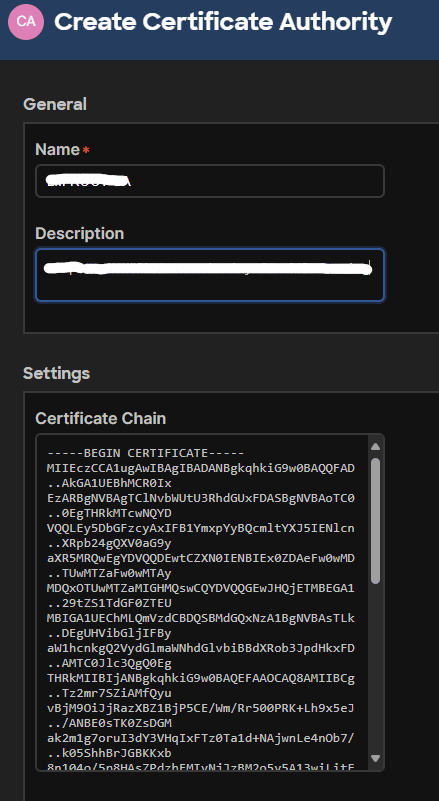
What if I have both an intermediate CA and a root CA certificates? In this case, copy/paste the certificate chain of the intermediate CA first, then copy/paste the certificate chain of the root CA.
Create a Key Ring#
A key ring is where we create the public key for the new certificate.
A default key ring has been automatically created for the self-signed certificate:
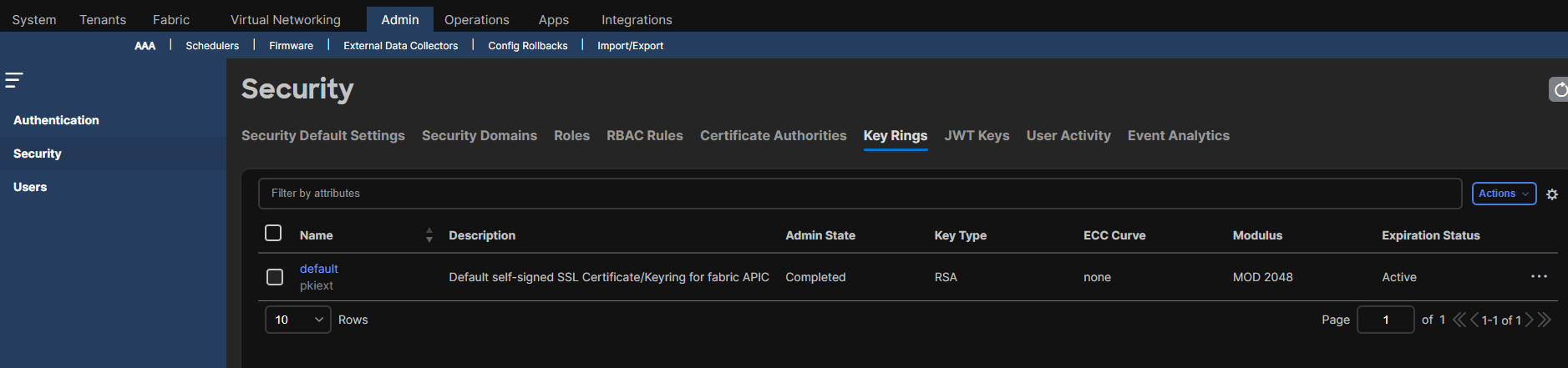
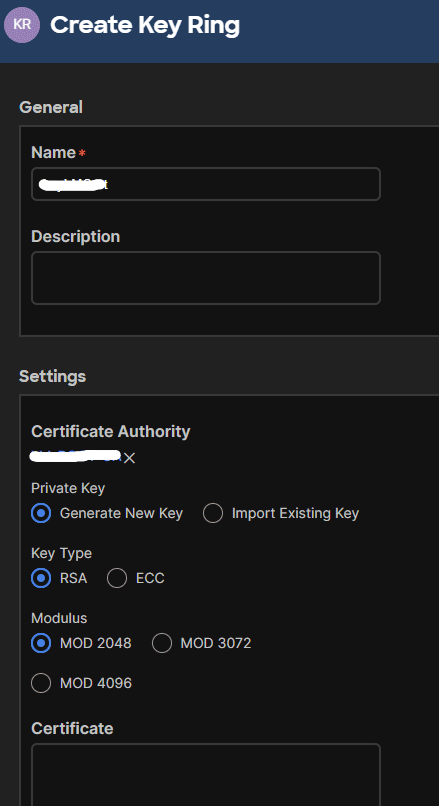
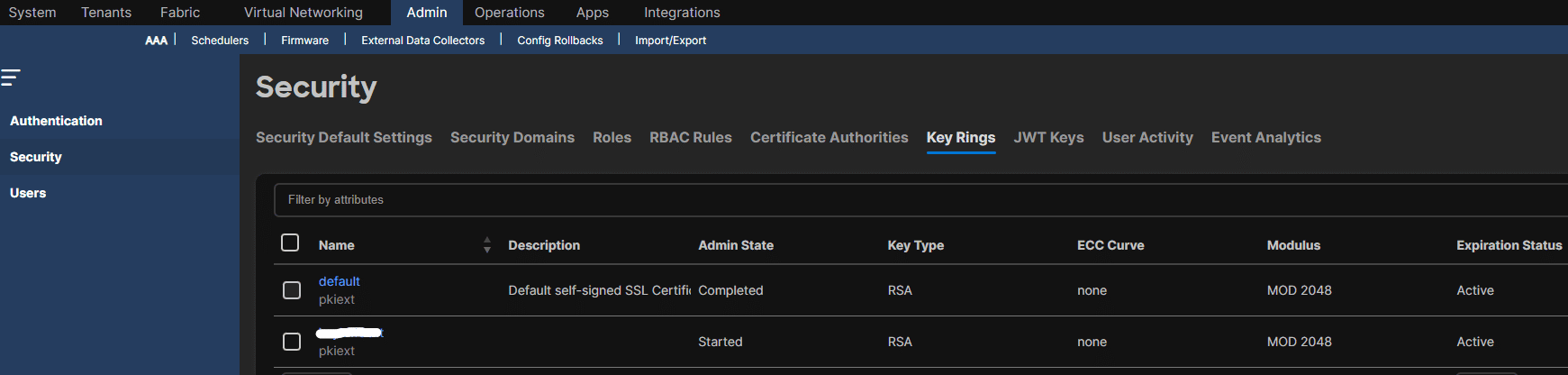
We need to create a new one and attach to it the Certificate Authority we’ve created. Leave the field Certificate empty.
Create a CSR from within the Key Ring#
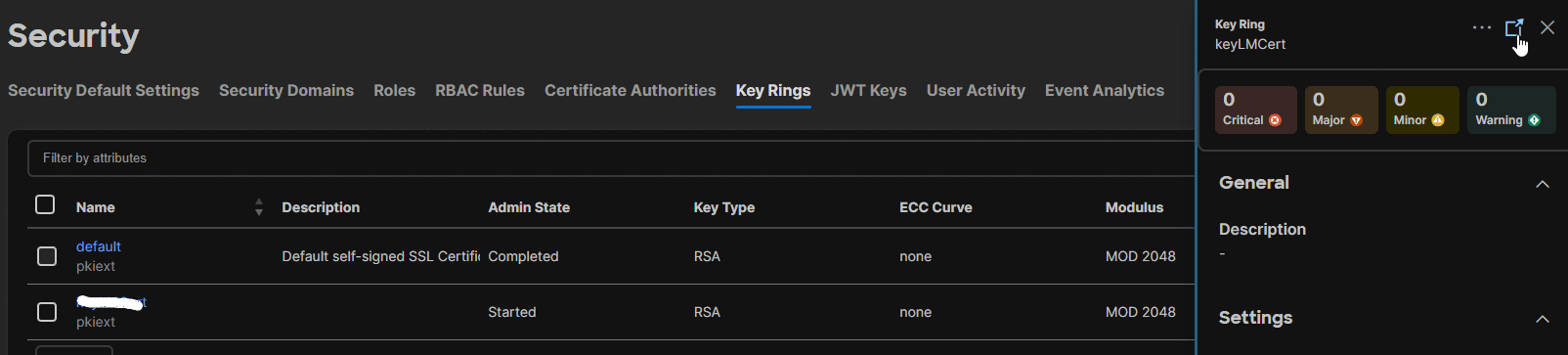
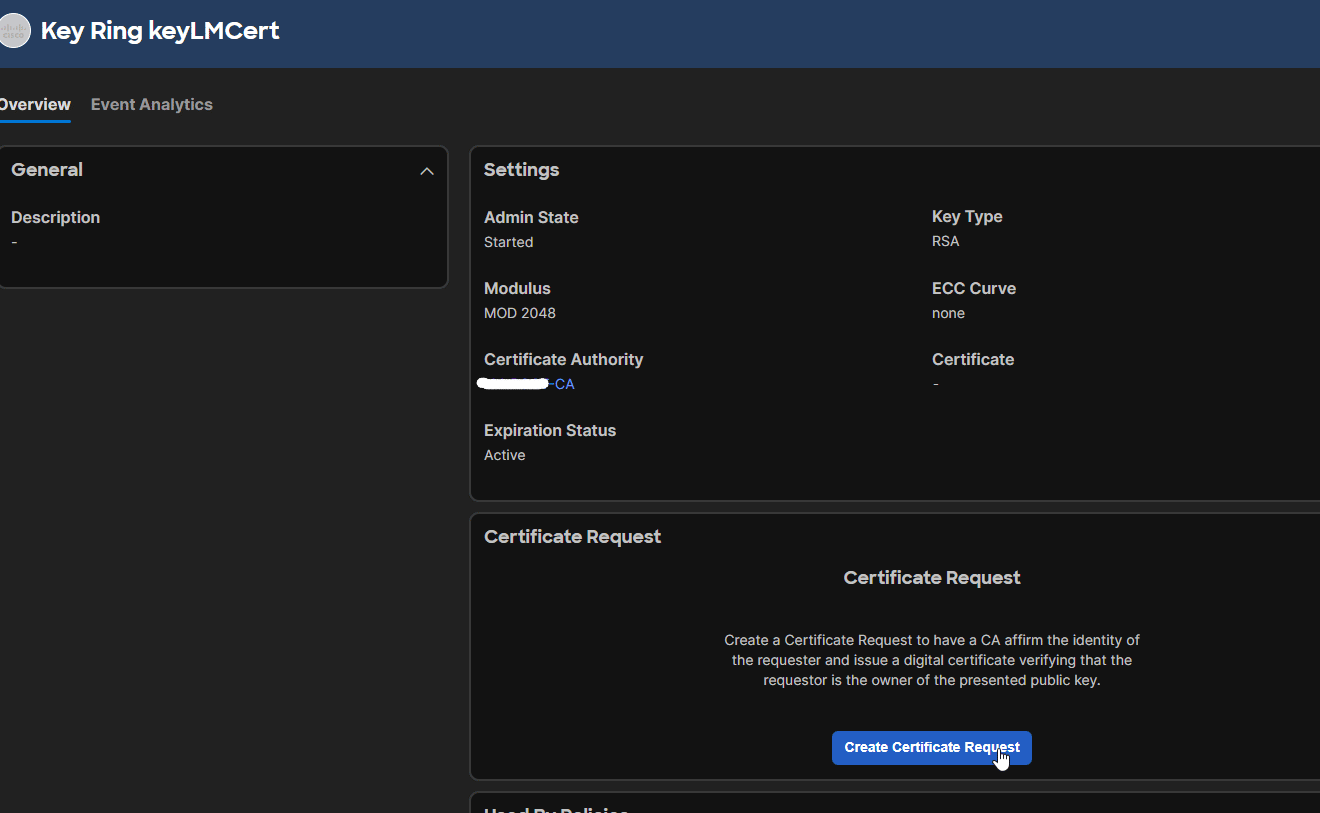
After filling the fields, we get something like this. Beware that the content below Request has been filled automatically:
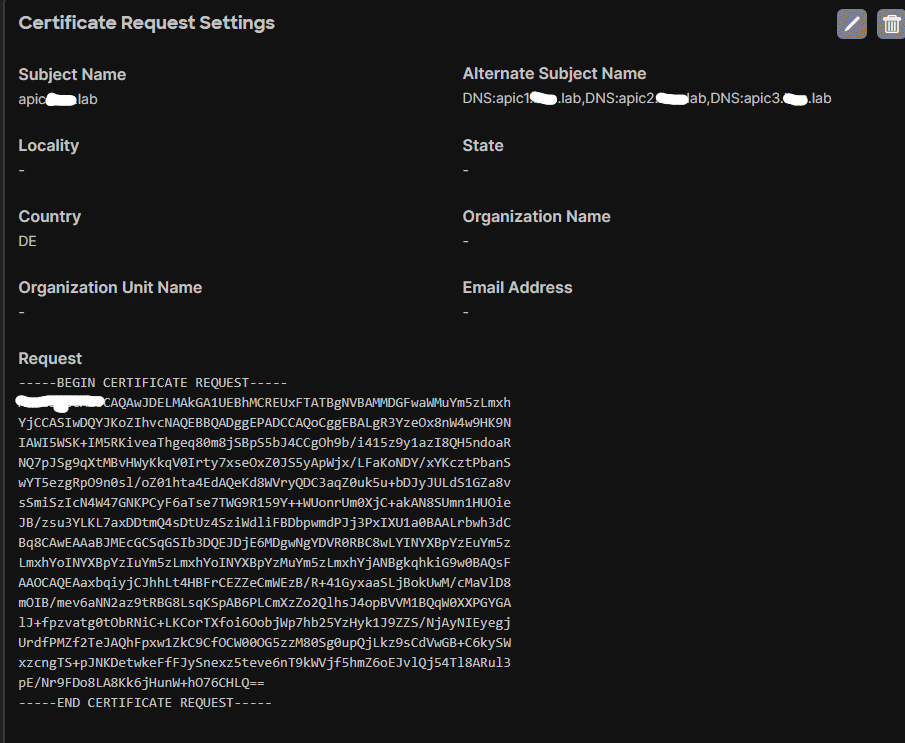
Another way to enter the alternate subject names is to use wildcards:
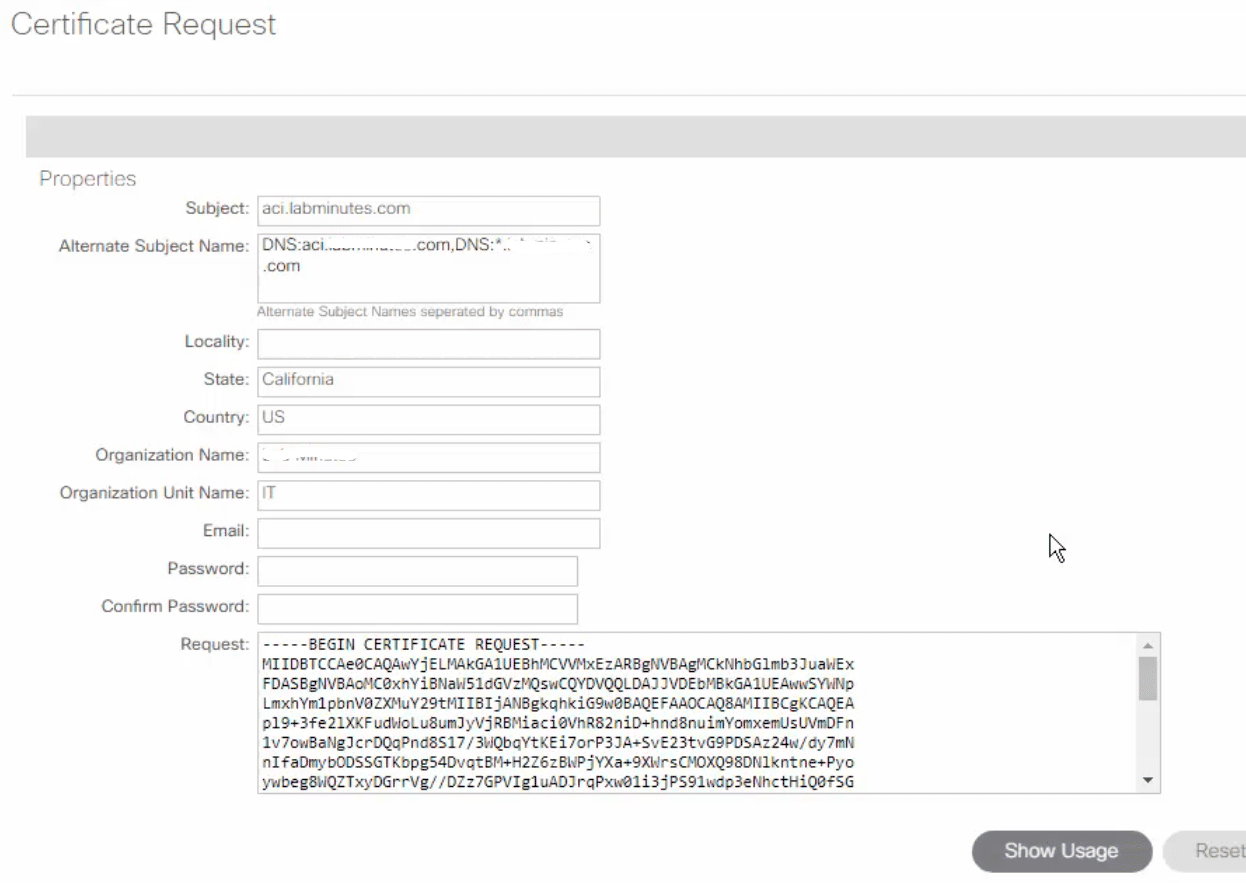
Submit the CSR to the CA to get the certificate signed#
Copy the content of the CSR
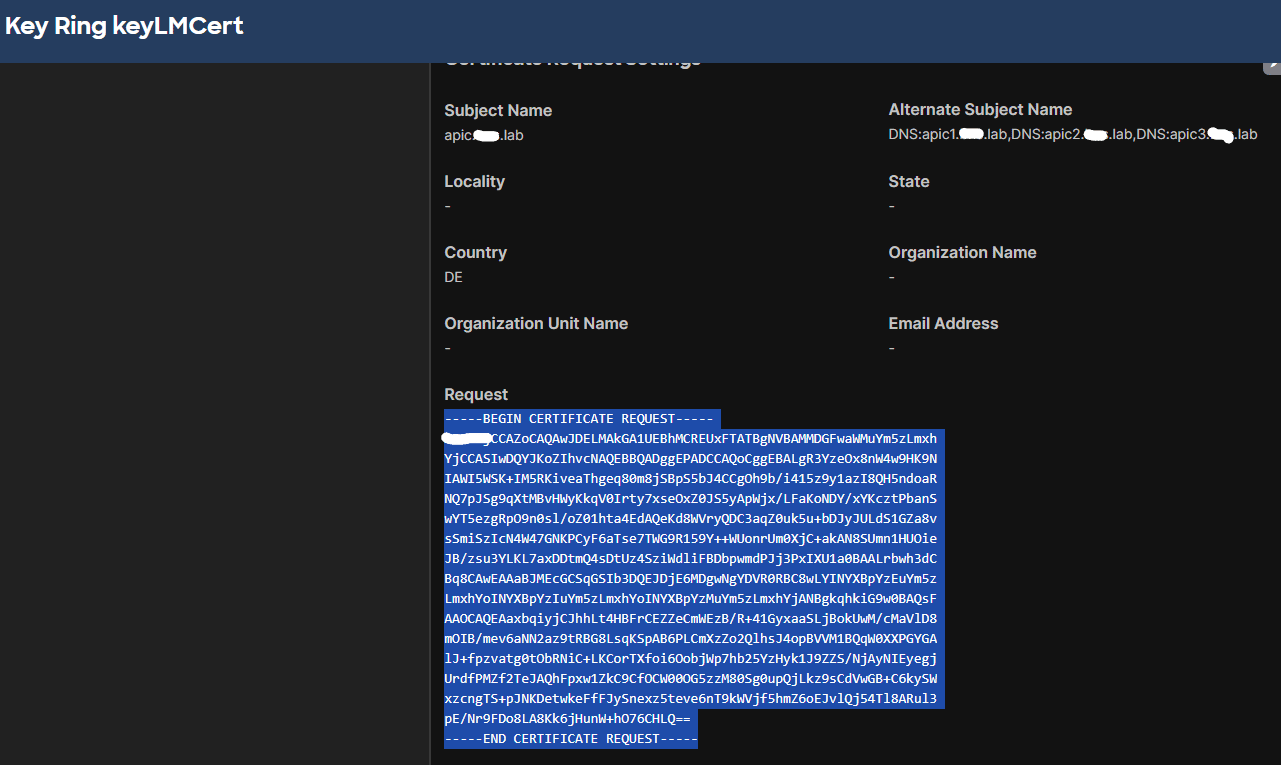
And submit it to the PKI team, which will use it to generate a certificate for it signed by the CA. You will receive the CA-signed certificate5 from the PKI team:
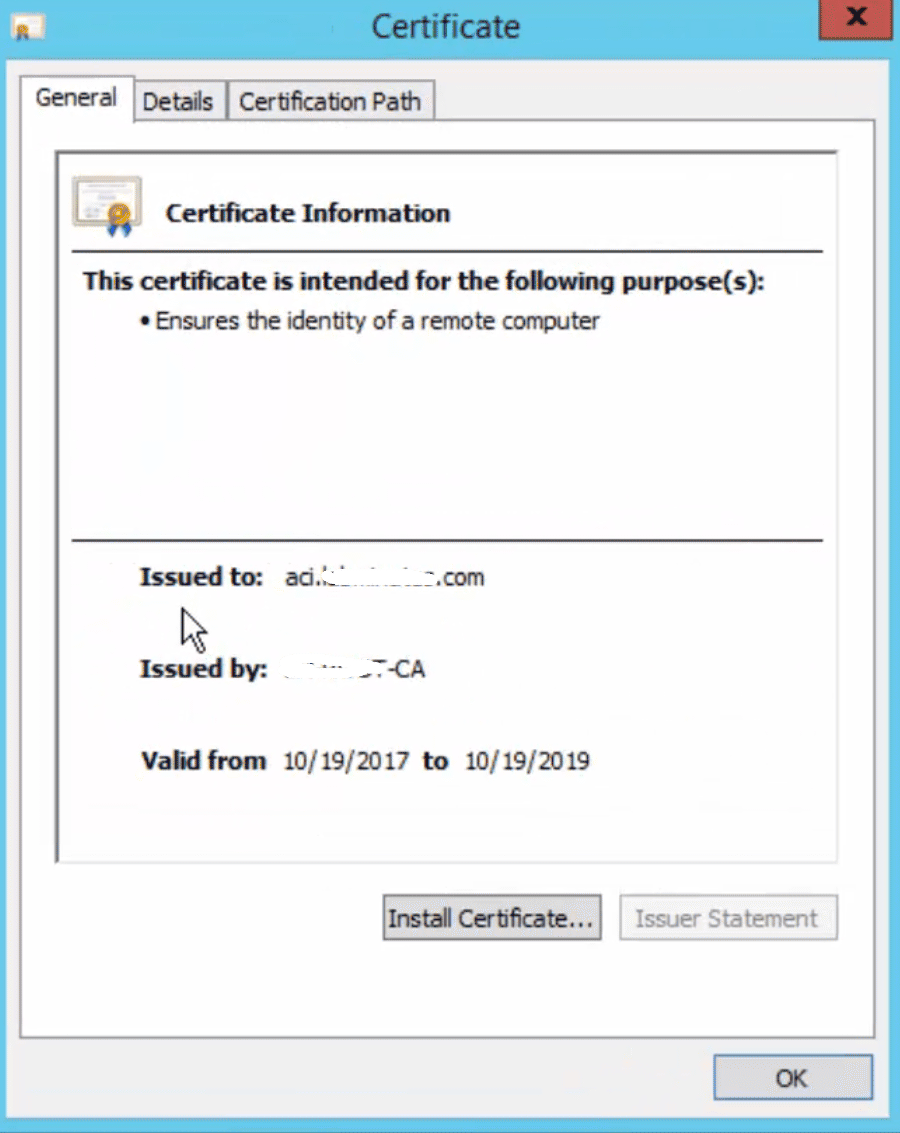
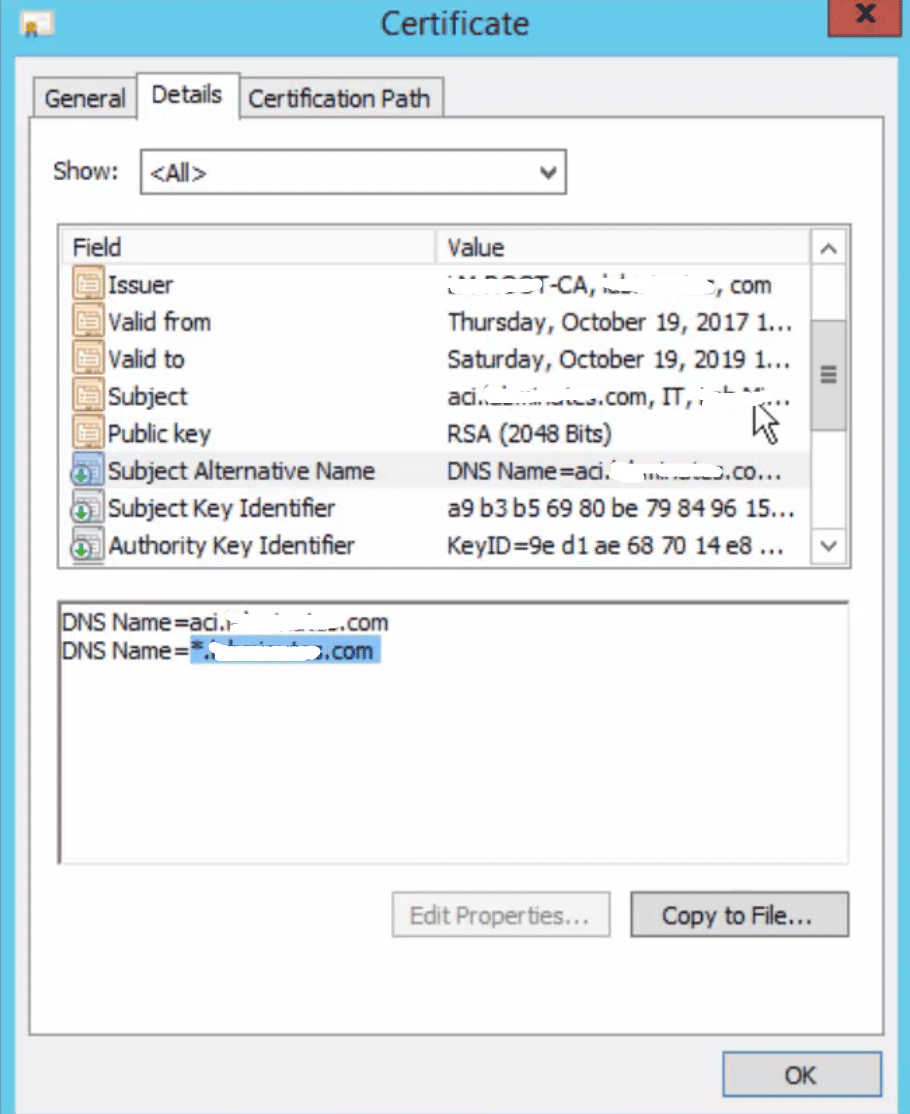
open the received certificate file with a notepad and copy its content:
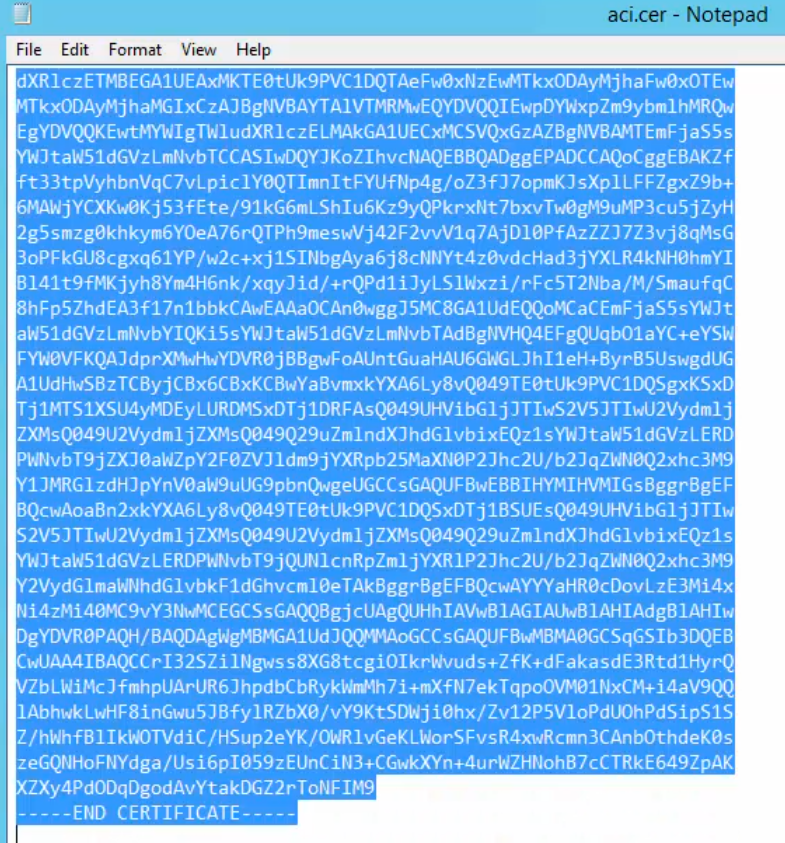
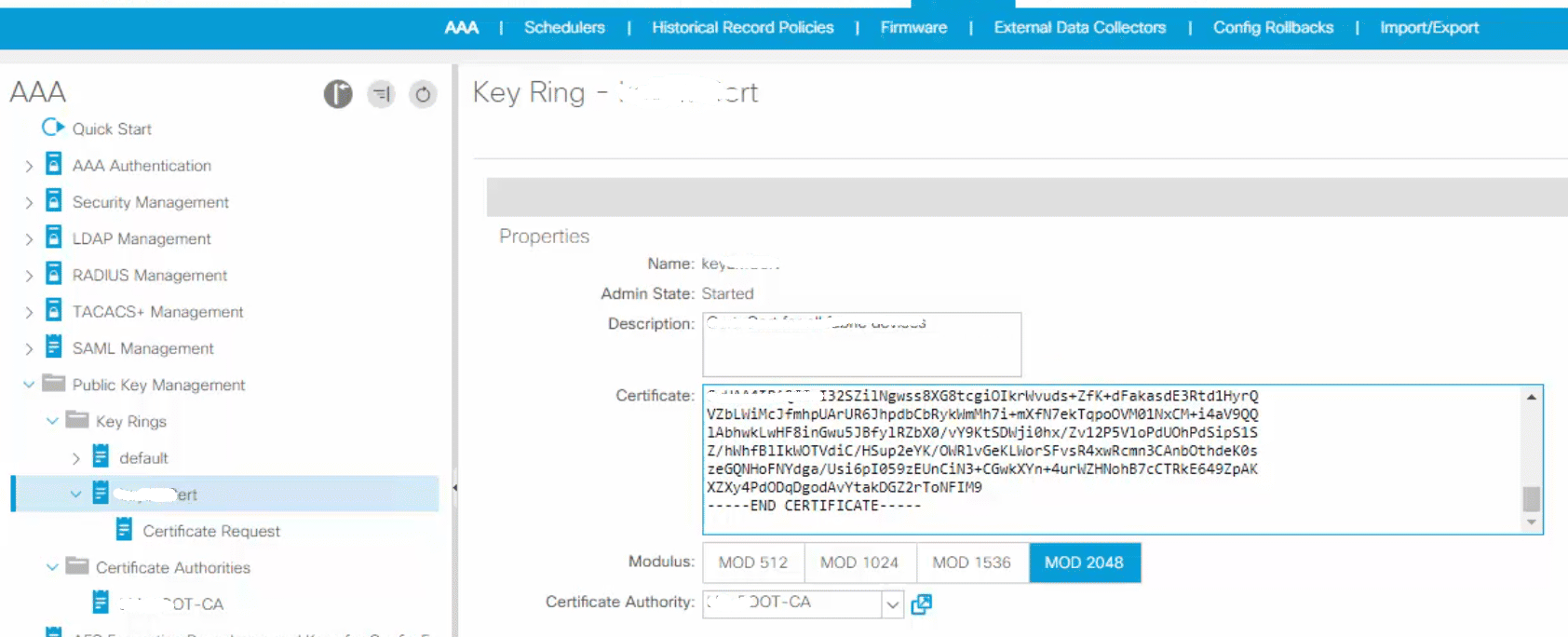
Paste it into the key ring Certificate field then press Submit:
Activate the Certificate#
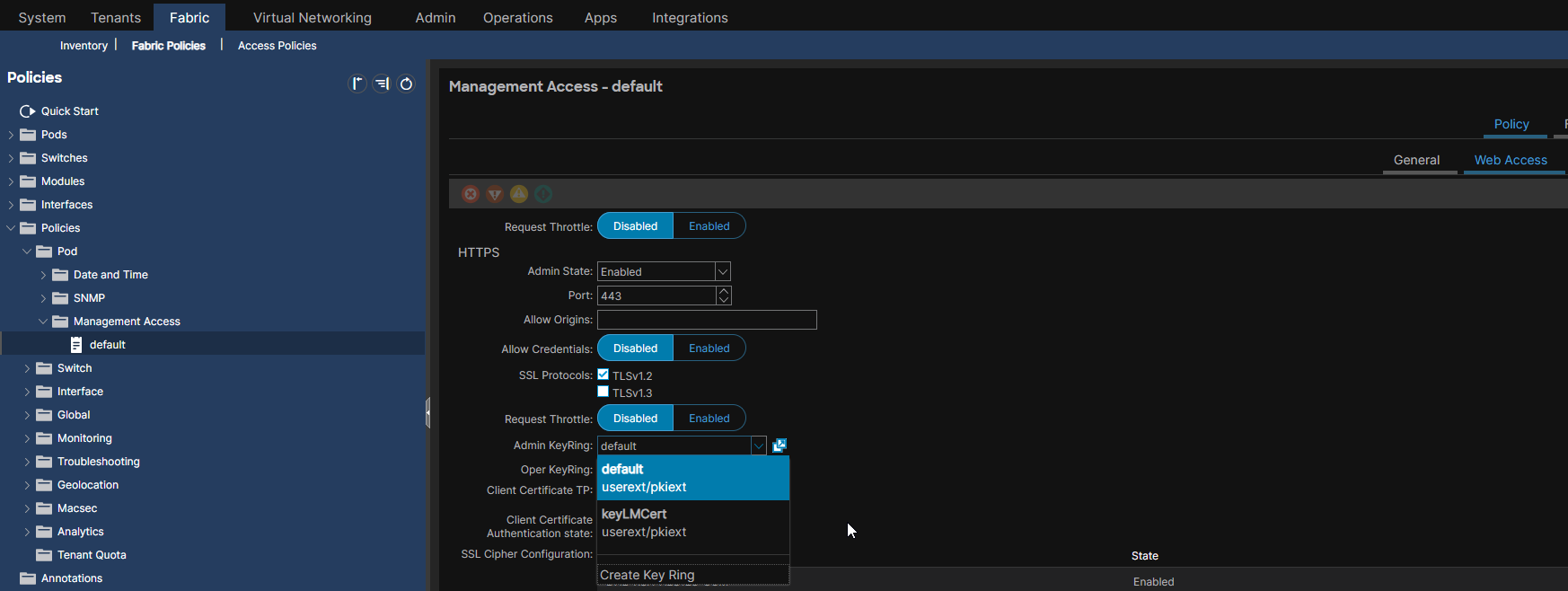
Apply the key ring that contains the CA signed certificate to the Management Access policy you’re using. Here we are using the default Management Access policy. Click Submit
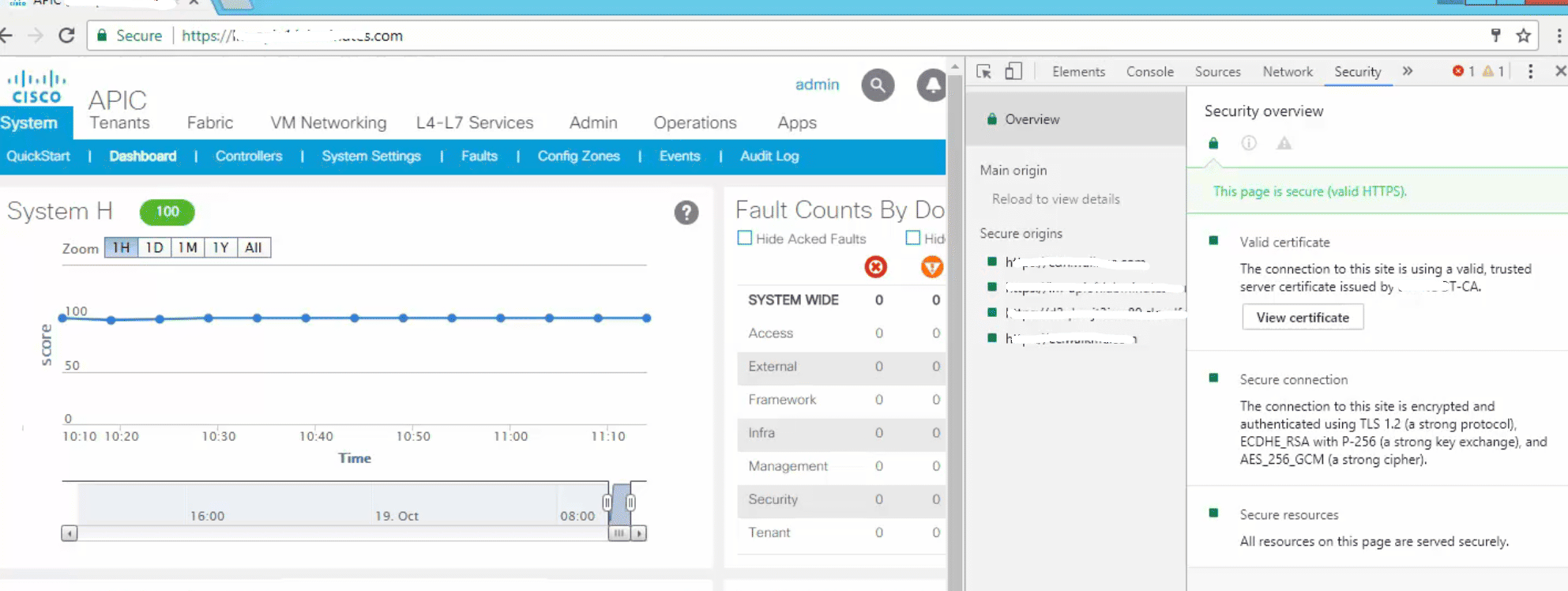
Now the web browser shall trust the certificate associated with ACI.
Considerations#
There is no way to backup the keys once the APICs crash; We need to redo all the steps.